Alerts and Notifications
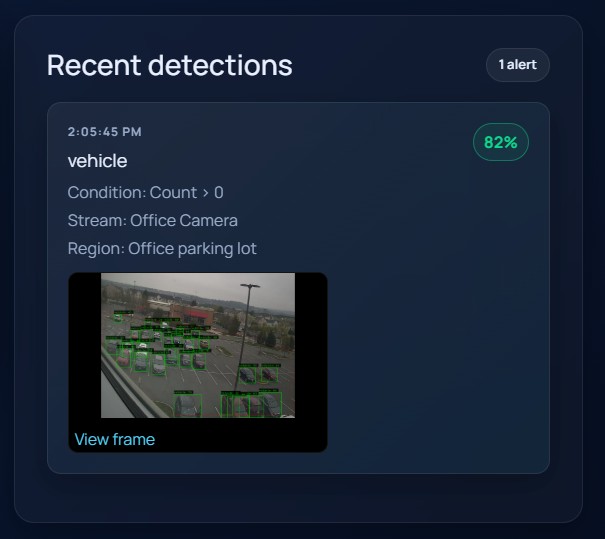
Alerting is configured per region and then summarized in the monitoring page's Recent detections panel.
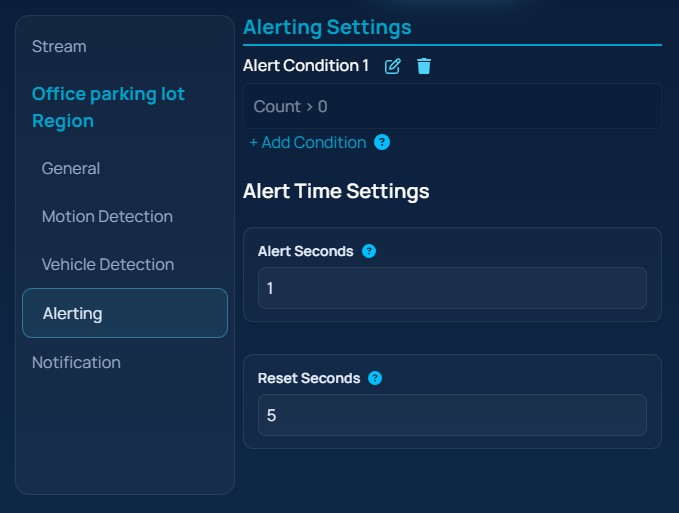
The screenshot below shows the region alerting editor with conditions and time settings.
Alert conditions
Each detection configuration starts with a default condition of count_greater_than 0. You can edit that condition, remove it, or add more conditions.
The UI supports these condition types:
Count =Count >Count <Line cross
Count conditions require a numeric count. Line-cross conditions require:
Line nameAlert direction
Use line-cross conditions only after you have named at least one boundary line on the preview canvas.
Alert timing
Each region also includes:
Alert SecondsReset Seconds
Alert Seconds controls how long a qualifying detection must remain active before the alert is raised. Reset Seconds controls how long EyesOnIt waits without a qualifying detection before allowing the next alert cycle.
Notification settings
Notification settings are configured once per stream from the Notification entry in the sidebar.
The screenshot below shows the notification form for a stream.
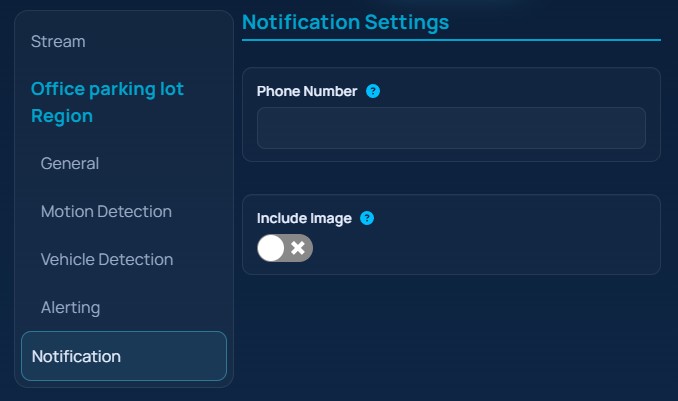
The current UI exposes SMS-oriented fields only:
Phone NumberInclude Image
Include Image adds the current camera image to the outgoing notification when image delivery is supported.
Reviewing detections
The right side of the monitoring page shows the most recent detections. Each card includes:
- detection time
- description text
- condition summary
- stream name
- region name
- confidence, when available
- a clickable thumbnail that opens the full frame
The screenshot below shows the recent detections panel with an alert card.